By default, your internet connection uses whatever DNS server your ISP assigns, and in the Philippines that often means slower lookups or ISP-level redirects on error pages. Switching to a public DNS provider like OpenDNS, Cloudflare, or Google Public DNS can speed up browsing and, in OpenDNS’s case, add basic content filtering. Here’s how to set it up on PC, mobile, and router level.
Popular public DNS options
| Provider | Primary | Secondary | Notes |
|---|---|---|---|
| Cloudflare | 1.1.1.1 | 1.0.0.1 | Fastest in most third-party benchmarks, privacy-focused |
| Google Public DNS | 8.8.8.8 | 8.8.4.4 | Reliable, widely used |
| OpenDNS | 208.67.222.222 | 208.67.220.220 | Built-in phishing protection, optional content filtering with a free account |
| Quad9 | 9.9.9.9 | 149.112.112.112 | Blocks known malicious domains by default |
You only need to pick one provider and enter both its primary and secondary addresses.
On Windows
- Open Settings > Network & Internet.
- Click your active connection (Wi-Fi or Ethernet), then Edit under DNS server assignment.
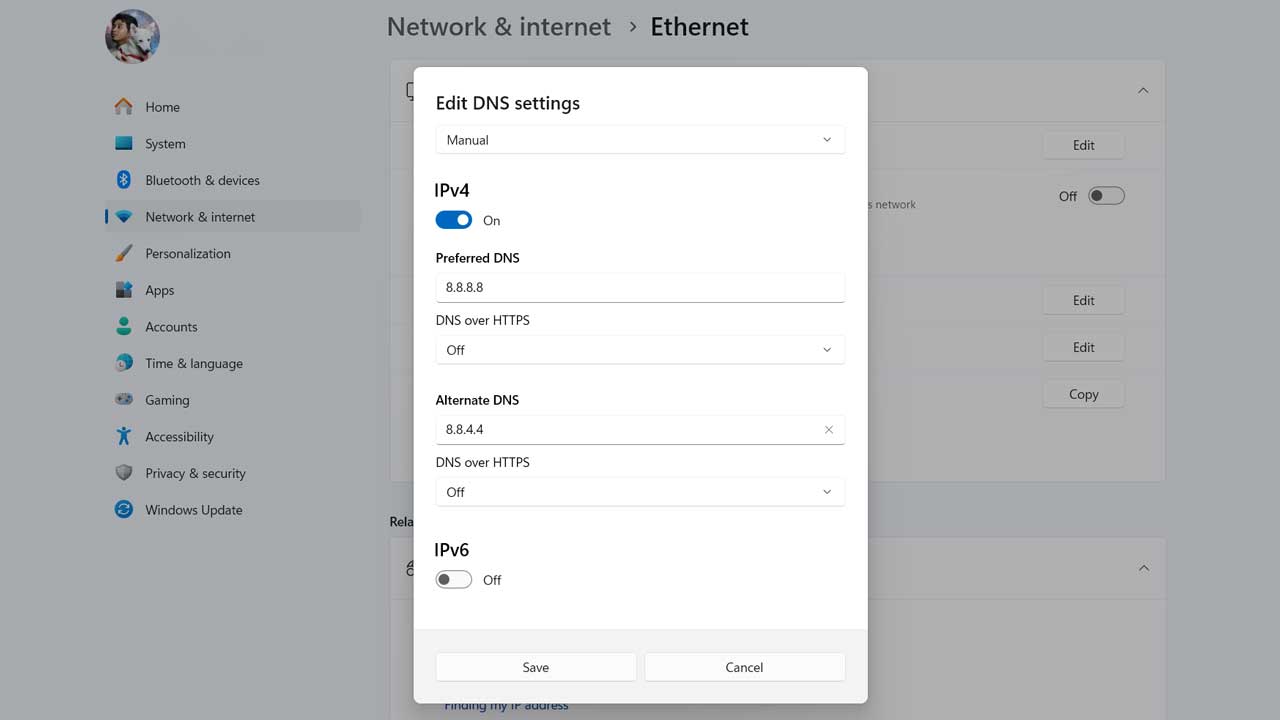
- Switch from Automatic (DHCP) to Manual, turn on IPv4, and enter your chosen DNS addresses in the Preferred and Alternate fields.
- Save, then run ipconfig /flushdns in Command Prompt to clear the old cache.
On macOS
- Go to System Settings > Network, select your connection, and click Details.
- Open the DNS tab and click the plus button to add your DNS addresses.
- Remove any old entries if you want a clean switch, then click OK and Apply.
On Android
- Go to Settings > Network & Internet > Internet, tap the gear icon next to your connected Wi-Fi network.
- Scroll to Private DNS (Android 9 and up handles this differently from per-connection DNS).
- Select Private DNS provider hostname and enter the provider’s DoT hostname, for example dns.opendns.com for OpenDNS or 1dot1dot1dot1.cloudflare-dns.com for Cloudflare.
- This setting applies system-wide across Wi-Fi and mobile data on most Android versions, unlike manual per-network DNS.
On iOS
- Go to Settings > Wi-Fi, tap the info icon next to your connected network.
- Tap Configure DNS, switch from Automatic to Manual.
- Remove the existing server entries and add your chosen DNS addresses.
- This only applies to that specific Wi-Fi network. For DNS across cellular data too, you’d need a profile-based or encrypted DNS app instead.

On your router (recommended for whole-network coverage)
Setting DNS at the router level applies it to every device on your network without configuring each one individually.
- Log into your router’s admin panel, usually at 192.168.1.1 or 192.168.0.1 (check the label on the router or your ISP’s documentation).
- Look for WAN Settings, Internet Settings, or DNS Settings, depending on the router brand.
- Switch DNS assignment from Automatic to Manual and enter your chosen primary and secondary DNS addresses.
- Save and reboot the router. Devices already connected may need to reconnect or renew their DHCP lease to pick up the new DNS.
Note that some ISP-issued routers in the Philippines lock this setting or override it on reboot. If that happens, you’ll need to set DNS at the device level instead, or replace the DNS settings inside a mesh/router app if your ISP provides one.
A few things worth noting
- Public DNS changes lookup speed and adds protections like phishing/malware blocking. It doesn’t encrypt your traffic or hide your browsing from your ISP unless you’re specifically using DNS-over-HTTPS or DNS-over-TLS.
- OpenDNS’s free tier requires creating an account and registering your IP if you want content filtering; using just the IP addresses above works without an account but skips the filtering features.
- Changing DNS won’t fix a slow connection caused by bandwidth or routing issues upstream of your device.