Video editing can slow down even a decent PC once the project goes beyond a short social clip. Longer videos, 4K files, screen recordings, effects, color changes, and multiple tracks put pressure on the CPU, GPU, RAM, and storage at the same time.
That’s why video editing PC requirements shouldn’t be judged only by whether a program opens on your computer. The real question is whether the timeline plays smoothly, exports finish in a reasonable time, and the editor stays responsive while you work.
The right upgrade depends on the problem you see most often. Slow loading usually points to storage. Freezing often points to RAM. Heavy effects put more pressure on the graphics card. Slow exports may mean the processor is holding the whole edit back.
Table of Contents:
Move active projects to an NVMe SSD
Storage is the first upgrade to consider when clips load slowly, playback stutters, or the editor takes too long to build previews. A hard drive can store finished videos, but it’s not a good working drive for active editing. Large media files, cache data, and preview files need faster read and write speeds.

An SSD for video editing improves project loading, timeline scrubbing, import speed, and cache generation. An NVMe SSD is the better option because it connects through PCIe and is much faster than a SATA SSD.
Keep OS, editing software, current project files, and cache on fast storage whenever possible. Finished exports and old source files can stay on a larger secondary drive. This smooth video editing setup keeps a creator from waiting on slow media access during everyday work.
This is one of the easiest video editing lag fix options because it doesn’t require changing the way you edit. It also fits almost any upgrade PC for video editing plan before more expensive parts like a new CPU/GPU.
Add more RAM for longer timelines
RAM for video editing matters when projects get longer, footage gets heavier, or several visual layers stay active on the timeline. Low RAM forces the system to use the drive as temporary memory, which makes the editor feel slow during playback and tool switching.

For light HD editing, 16 GB can still work. For 4K projects, 32 GB is a safer baseline. More complex work may benefit from 64 GB, especially with high-res clips and several apps open during editing.
Low RAM usually shows up as freezing, delayed response, and slow switching between parts of the project. It can also make the whole system feel heavy, not only the editor. Opening a browser, file manager, or audio app during editing may suddenly become annoying.
A RAM upgrade makes the most sense when the computer already has an SSD but still freezes during normal work. It’s one of the safest video editing performance tips because it improves general stability, not only export time.
Choose a faster CPU for decoding and export
The best CPU for video editing is usually a modern multi-core processor with strong single-core speed. Cores help during export and rendering. Single-core speed still affects how quickly the editor responds while you work.
CPU problems often show up as choppy playback with compressed footage, high CPU usage during export, and slow response after cuts or timeline changes. H.264 and HEVC files are especially demanding because they are efficient for storage but harder to decode during editing.
For example, working in Movavi for video editing can feel slow on older PCs when the processor struggles with large compressed files, preview playback, or export. A stronger CPU gives the editor more room to decode footage and process timeline changes.
Processor speed also matters when you work with long screen recordings, phone videos, or several clips in one project. Frequent exports benefit from better all-core performance, while everyday editing still needs strong per-core speed.
A recent mid-range CPU is usually enough for HD editing and shorter 4K projects. Rendering long timelines with multiple effects and heavier codecs benefit from a stronger processor.
Upgrade the GPU for effects and high-resolution playback
GPU for video editing becomes more important when the project uses color correction, stabilization, scaling, background removal, blur, or other visual effects. Integrated graphics can handle simple edits, but a dedicated GPU gives the editor more processing power and its own video memory.
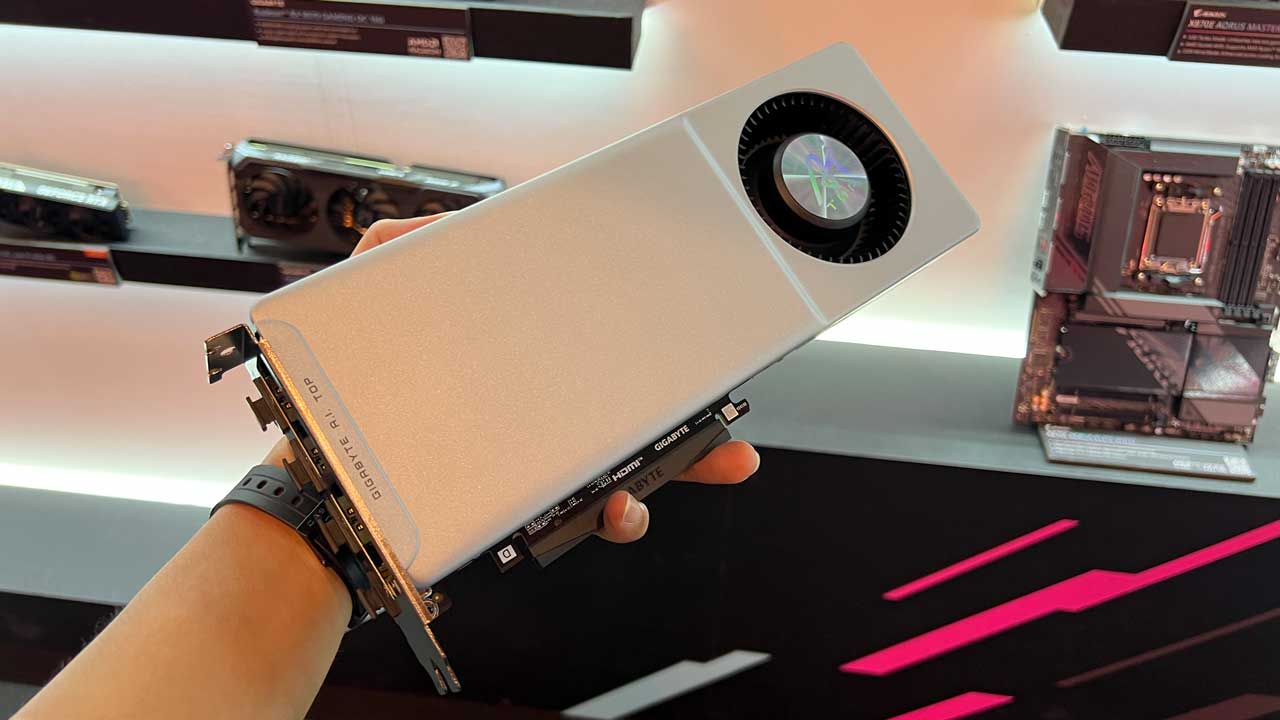
DaVinci Resolve is the clearest case. Resolve relies heavily on the graphics card for color work and many image-processing tasks. GPU memory errors or failed GPU processing usually point to the graphics card. More VRAM gives Resolve more space for high-resolution frames and heavier effects.
A stronger GPU also helps with preview smoothness and effects in simpler editors. A user working with blurring video or background effects will get a better experience from updated graphics hardware and current drivers.
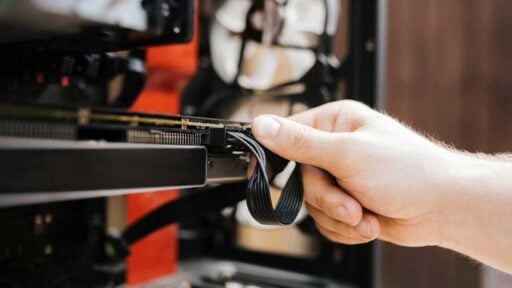
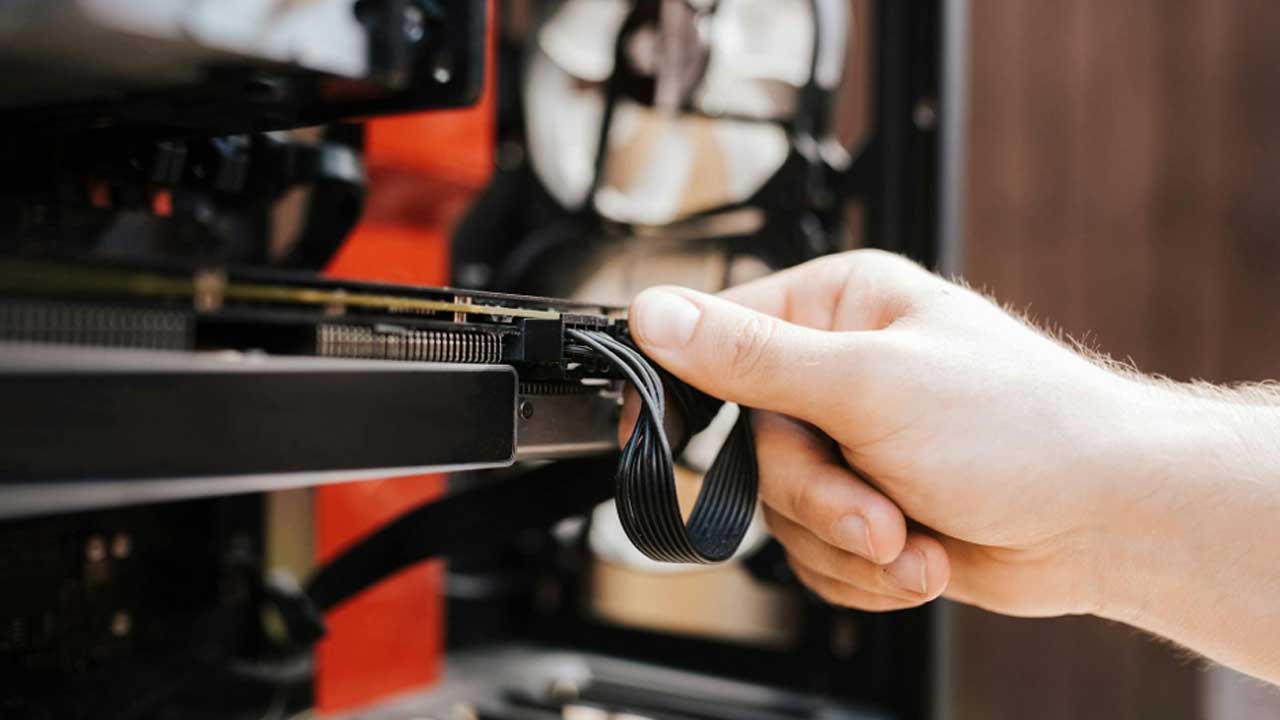
Desktop users should also check the power supply before buying a new graphics card. Laptop users usually cannot upgrade the GPU, so the practical fixes are driver updates, proxy editing, or choosing a stronger laptop later.
Improve the monitor, ports, and external drive setup
Some editing delays come from the setup around the computer, not only from the main components.
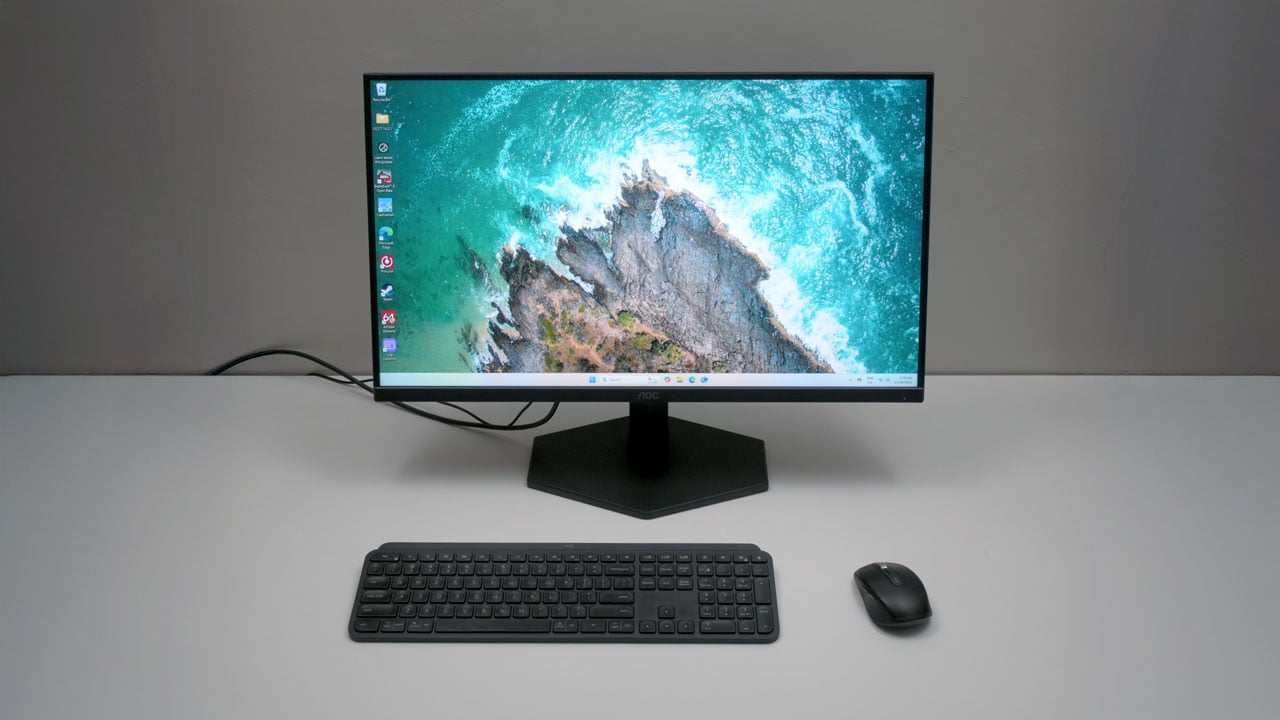
A better monitor doesn’t increase render speed, but it can make editing faster. More screen space means less panel switching and less timeline zooming. A 27-inch 1440p display is a practical step up from a small laptop screen. Color work also feels less frustrating on a better panel with stable brightness.
Fast connections matter too. A cheap card reader can make camera imports painfully slow. A fast external SSD connected through an old USB port won’t perform at full speed. USB 3.2 or Thunderbolt storage is a better choice for active editing from external media.
This part of hardware for video editing matters because many projects start with phone clips, action-camera files, screen recordings, or footage stored on external drives. Better ports and faster external storage reduce copying time and prevent playback problems caused by slow media access.
Conclusion
The best answer to how to speed up video editing is to start with the bottleneck you actually feel during work. Slow imports, choppy playback, freezing, long exports, and delayed response usually point to different parts of the computer.
A good upgrade PC for video editing plan usually starts with an NVMe SSD and enough RAM. Those two changes solve many everyday editing problems. A stronger GPU matters more for effects, color work, and high-resolution playback. A faster CPU becomes more important when exports take too long or compressed footage feels heavy on the timeline.
PC specs for video editing should match the type of projects you make. Start with the delay that interrupts your work most often, then upgrade the component behind it.