
OpenAI has released its first open-weight language models, and you can run them locally on your AMD Ryzen AI processors and Radeon graphics cards. These models, a 120B parameter version and a 20B parameter version, offer advanced reasoning capabilities directly on your personal computer.
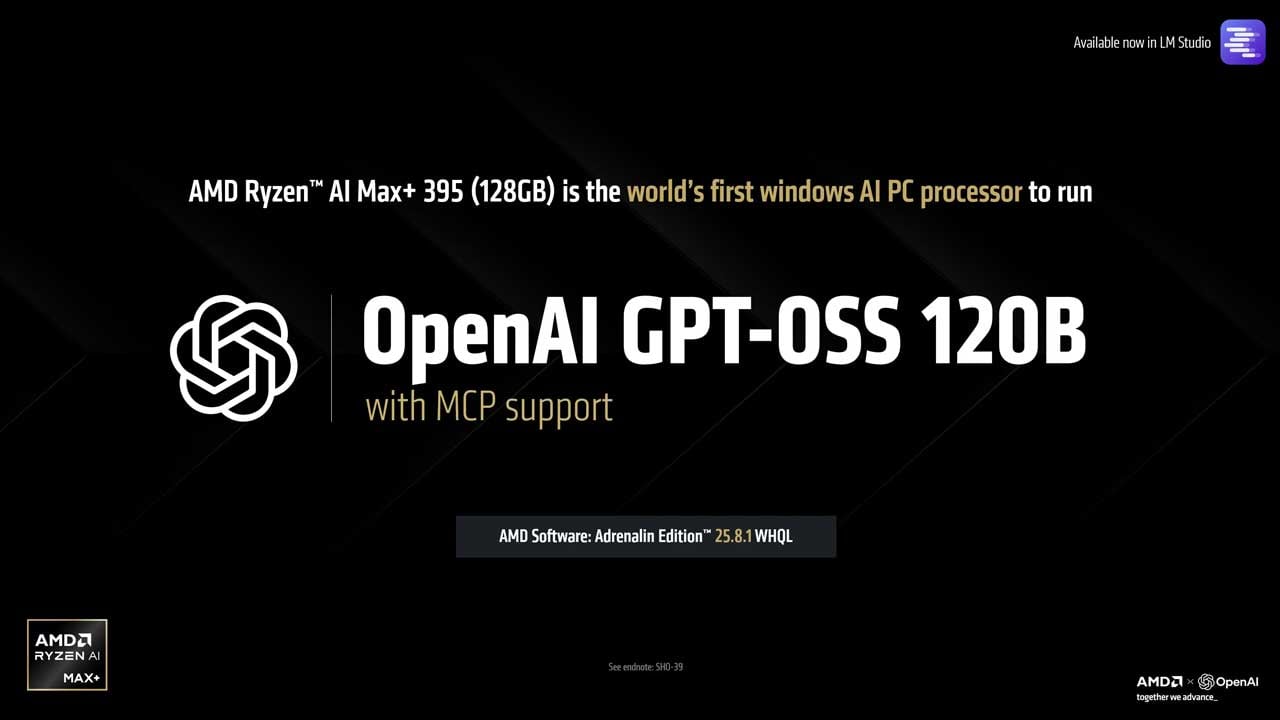
The flagship AMD Ryzen™ AI Max+ 395 is the world’s first consumer AI PC processor capable of running the powerful OpenAI GPT-OSS 120B model, a task that previously required datacenter-grade hardware.
Compatibility Check
Before you get started, ensure your hardware is compatible and configured correctly. The necessary Variable Graphics Memory (VGM) settings for Ryzen AI processors are also listed below.
| AMD Product | OpenAI Model | VGM Setting |
| AMD Ryzen™ AI Max+ 395 processor (128GB) | OpenAI GPT-OSS 120B | Set to 96 GB |
| AMD Ryzen™ AI Max+ 395 processor (64GB) | OpenAI GPT-OSS 120B | Set to 32 GB |
| AMD Ryzen™ AI Max+ series processor (32GB) | OpenAI GPT-OSS 20B | Set to 16 GB |
| AMD Ryzen™ AI 300 series processor (32GB) | OpenAI GPT-OSS 20B | Set to 16 GB |
| AMD Radeon™ 9070 XT, 9070, and 9060 XT GPUs (with 16GB memory) | OpenAI GPT-OSS 20B | N/A |
| AMD Radeon™ 7000 series GPU (with at-least 16GB memory) | OpenAI GPT-OSS 20B | N/A |
Step-by-Step Installation and Setup
Follow these instructions to get the OpenAI models running on your AMD system.
- Update Your Drivers: First, download and install the AMD Software: Adrenalin Edition™ 25.8.1 WHQL driver or a newer version. Older drivers may not work correctly or at all.
- Configure Graphics Memory (for Ryzen AI users):
- Right-click on your desktop and open AMD Software: Adrenalin Edition.
- Navigate to the Performance tab, then the Tuning tab.
- Under Variable Graphics Memory, set the VGM according to the table above.
- If you are using a Radeon graphics card, you can skip this step.
- Install LM Studio: Download and install LM Studio. You can skip the onboarding process after installation.
- Download the Model:
- In LM Studio, go to the Discover tab (the magnifying glass icon).
- Search for “gpt-oss”.
- Select the model with the “lm studio community” prefix.
- Choose and download the 120B or 20B model based on your hardware’s compatibility.
- Load the Model:
- Go to the Chat tab in LM Studio.
- From the top drop-down menu, select the OpenAI model you downloaded.
- Enable the “Manually load parameters” option.
- Slide the “GPU Offload” slider all the way to MAX and check the “remember settings” box.
- Click Load. Be patient, as the 120B model is large and may take some time to load into memory.
Once the model is loaded, you can start prompting and interacting with it!
Performance Insights
With the Ryzen AI Max+ 395 processor, you can expect speeds of up to 30 tokens per second on the 120B model.
For those using the AMD Radeon 9070 XT 16GB graphics card with the 20B model, you can anticipate lightning-fast performance and excellent Time to First Token (TTFT), especially when using Model Context Protocol (MCP) implementations.